Earlier this year I started extracting network data from LinkedIn via the LinkedIn API. There are some earlier posts about how this can be done, and a couple more looking at the data over the first couple of months for which I was able to compile a proper data set.
Since then I've been compiling more data and now seems a good time to look at how my network has grown, and the extent to which my connections make use of LinkedIn.
My network has grown by around 10% since I first started accumulating data, and one of the consequences of accumulating that data (as there is a limit to what you can retrieve in any one request) is the inevitable lack of historical data for new connections.
However, this effect can be lessened by only reporting activities within the last calendar month, which is the report I'm currently producing. That data can then be accumulated itself, to give a month by month overview:
What's interesting is that over the 4 months shown, my network has grown, but the percentage of it making use of LinkedIn features has fallen - which would imply that the new connections are not, on average, increasing the usage figures.
This suggests that LinkedIn is being used fully only by a small core group of my connections, while the remainder use it for making new connections and building their own networks, or in a lot of cases, not at all - consider the final set of bars, over a third are consistently not using LinkedIn at all in a way that can be measured.
I'll be continuing to accumulate this data over the coming months. In the meantime you can find out more about the chart above here.
Wednesday, 4 July 2012
Monday, 25 June 2012
Don't Make this Mistake when Embedding YouTube Videos
How YouTube's "related videos" Feature can Hurt your Marketing
Many businesses are now using YouTube for promotional and educational videos to showcase what their business can do. They are a great way of reaching out to potential customers and getting your message across.
However, one of the useful features YouTube offers can, in some circumstances, really hurt you. Once your video has stopped playing, YouTube helpfully displays a collection of related videos, which the viewer might be interested in. Chances are, these will be determined using keywords in the title of your video. Some of them might even be videos you've uploaded yourself.
However, sometimes they aren't, and they might even put out a message completely different to the one that you are. Here are a few examples:
Obviously these are situations you want to avoid, and although you can't stop people searching for other material about you, your products, or your marketplace, you can at least stop YouTube from doing the work for them. Here's how.
When you embed a YouTube video, you'll always have a URL to work with, here's one for a video about LinkedIn. Play it, and look out for the (possibly) related items at the end.
The URL for this embedded video is as follows, click on the link and the video will open in a new window in your browser.
These can be suppressed simply by adding a few characters to the end of the URL. This is the same video, but if you play this one, you'll see that at the end, there is just a blank screen rather than the related videos.
As you can see, the URL is very similar, but just has a bit extra in it
This simple change will make sure that you market your business and its products - and nothing else!
![]() |
| photo by Alan Light on Flickr |
However, one of the useful features YouTube offers can, in some circumstances, really hurt you. Once your video has stopped playing, YouTube helpfully displays a collection of related videos, which the viewer might be interested in. Chances are, these will be determined using keywords in the title of your video. Some of them might even be videos you've uploaded yourself.
However, sometimes they aren't, and they might even put out a message completely different to the one that you are. Here are a few examples:
- A kindergarten promotional video where the suggestions are less "child-friendly".
- A company video where one of the suggestions is a competitor in the same market.
- A company video where one of the suggestions may criticise the company or its products, or its market generally.
Obviously these are situations you want to avoid, and although you can't stop people searching for other material about you, your products, or your marketplace, you can at least stop YouTube from doing the work for them. Here's how.
When you embed a YouTube video, you'll always have a URL to work with, here's one for a video about LinkedIn. Play it, and look out for the (possibly) related items at the end.
The URL for this embedded video is as follows, click on the link and the video will open in a new window in your browser.
These can be suppressed simply by adding a few characters to the end of the URL. This is the same video, but if you play this one, you'll see that at the end, there is just a blank screen rather than the related videos.
As you can see, the URL is very similar, but just has a bit extra in it
This simple change will make sure that you market your business and its products - and nothing else!
Wednesday, 20 June 2012
Fix for Upload Image bug on LinkedIn Company Pages
I've been playing recently with LinkedIn's Company Pages feature, and discovered a frustrating issue with the upload process for logo images and also products and services showcase images.
For some reason, these images simply don't upload, and after some playing, I got some help from Firefox:
This had me off looking at the HTML for the page, which revealed the problem. Some time ago, LinkedIn implemented HTTPS on all its pages, advising users, quite correctly, to switch over to this as soon as possible. This means that the URL for the "edit company overview" page will look like this:
However, within that page, the form to upload images has the following action URL:
It is this mismatch between secure and not-secure that gives rise to the message from Firefox, and it turns out that this interferes with the image upload process.
Therefore the workaround for this is to switch off the option to use HTTPS when possible (Settings -> Account -> Manage Security Settings). The dialogue looks like this:
Untick the box, save, and then navigate back to your company page, making sure you are now using HTTP and not HTTPS, and you should find that the images now upload correctly. When you have completed your work, you should of course return to the security settings and switch HTTPS back on.
For some reason, these images simply don't upload, and after some playing, I got some help from Firefox:
This had me off looking at the HTML for the page, which revealed the problem. Some time ago, LinkedIn implemented HTTPS on all its pages, advising users, quite correctly, to switch over to this as soon as possible. This means that the URL for the "edit company overview" page will look like this:
https://www.linkedin.com/company/myco-ltd/edit
However, within that page, the form to upload images has the following action URL:
http://www.linkedin.com/mupld/upload
It is this mismatch between secure and not-secure that gives rise to the message from Firefox, and it turns out that this interferes with the image upload process.
Therefore the workaround for this is to switch off the option to use HTTPS when possible (Settings -> Account -> Manage Security Settings). The dialogue looks like this:
Untick the box, save, and then navigate back to your company page, making sure you are now using HTTP and not HTTPS, and you should find that the images now upload correctly. When you have completed your work, you should of course return to the security settings and switch HTTPS back on.
Monday, 18 June 2012
North Downs Walk: Westhumble and Ranmore Common
![]() |
| View from North Downs Way near Ranmore Common |
Follow this, crossing one road along the way, eventually reaching a kissing gate into a field. There's a second gate immediately ahead, pass through this to meet the North Downs Way at TQ 16358 51446 [C].
![]() |
| Church of St Barnabas |
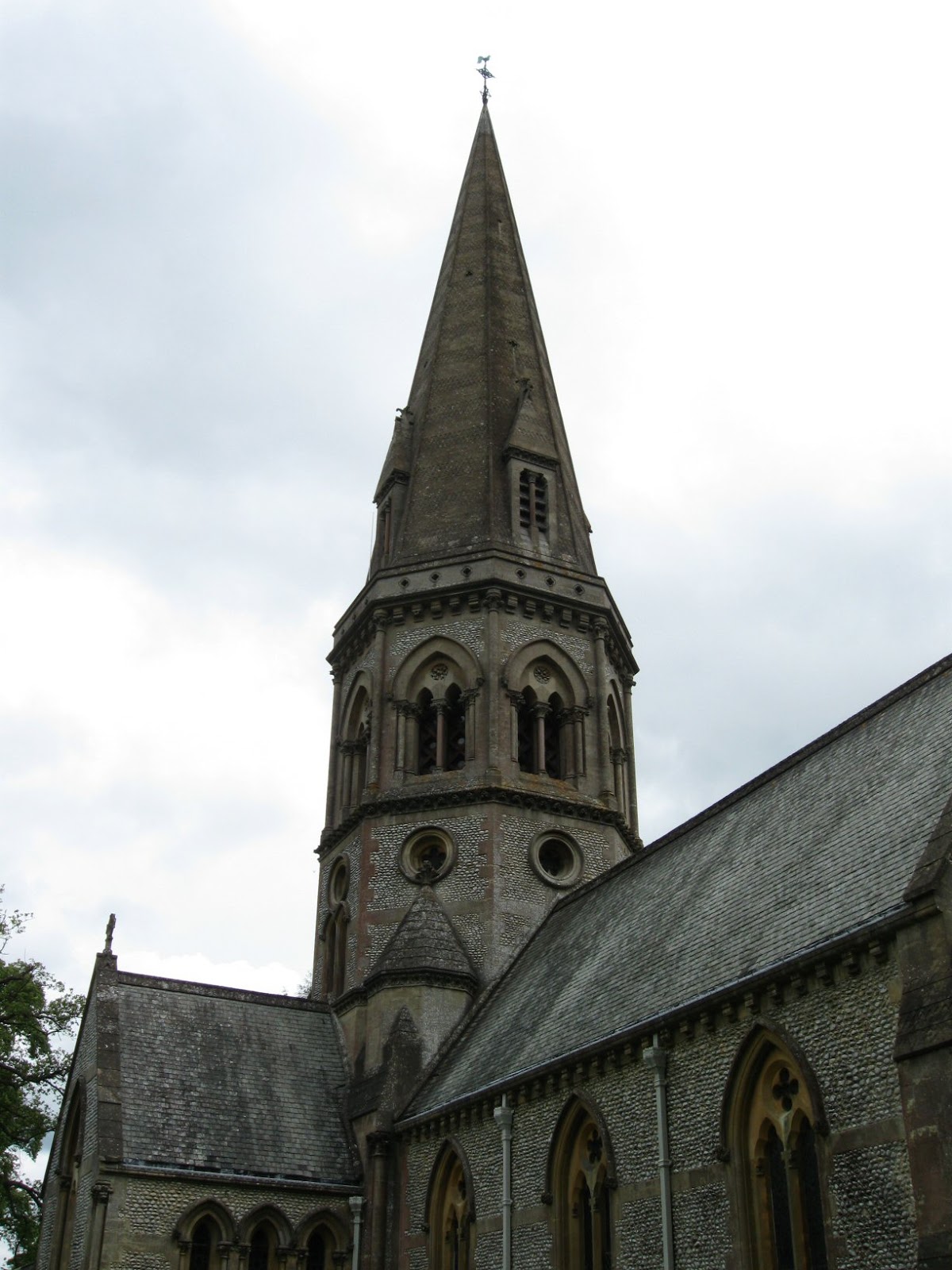
Follow the North Downs Way as it turns right at TQ 15124 50529 [D] and left at TQ 15091 50691 [E] on to Ranmore Common Road. Follow this, and if time permits spend a while looking at the Church of St Barnabas on the left.
Ranmore Common Road emerges from the trees at a junction at TQ 14355 50369 [F], the North Downs Way continues on the other side of the road - look for the footpath post immediately opposite.
Follow the path around to the right, and then straight ahead into the trees. There are further good views of the valley over to the left.
![]() |
| Ranmore Common |
There are in fact three paths leading away from here, this walk takes the middle one, signposted for the Youth Hostel at Tanner's Hatch. At the Youth Hostel, follow the path round to the right at TQ 14009 51552 [I].
Soon after emerging from the trees, there is a junction of paths at TQ 14423 51730 [J]. At this point, it is possible to branch off and visit Polesden Lacey, see the note below for this extension.
Bear right across open land to Bagden Farm, and then left to meet Chapel Lane at TQ 14802 52093 [K]. From here, follow Chapel Lane back towards Westhumble. Note that the lane is winding and narrow, and
difficult in places, but it is nevertheless possible to walk straight back into Westhumble this way.
Alternatively, take a right turn on to Ranmore Common Road, and then take the footpath off to the left at TQ 15246 51946 [L], following this upwards and keeping to the left - the footpath continues across a style and alongside the edge of the trees. Cross another style and then follow the path as it bears to the right.
At the footpath junction at TQ 15871 51622 [M] turn left, and then look for the footpath on the right at TQ 16028 51856 [N]. Rejoin Chapel Lane, and follow it back into Westhumble.
![]() |
| Italianate Bridge |
Note that it is possible to enter the grounds from this road, by following it to the gate and entering at TQ 14209 51964 [P], but it is possible to access the visitor centre and facilities without buying a ticket for the house and grounds, there is a gate to the right at TQ 14248 51952 [Q] before reaching the boundary gate. Keep following this path around the boundary, through two gates at TQ 14067 52280 [R], bear left around the edge of the trees at TQ 13950 52481 [S] before finally meeting the entrance road at TQ 13699 52384 [T].
From there, the main entrance is ahead and on the left.
To rejoin the walk, head back to the Italianate Bridge, and continue on the road, which winds down to Bagden Farm. Pass through the gate to the left of the main gate and on to Chapel Lane.
Wednesday, 13 June 2012
Dave Gorman, Flickr, and the DMCA - Concluded
Update: Dave Gorman has a new blog post describing the conclusion to this saga.
On February 17th this year, Flickr deleted this photograph posted by Dave Gorman, following a Digital Millennium Copyright Act (DMCA) request from a company called Wasteland Inc. They basically told Flickr that they were the rightful copyright holders, and in response to that, Flickr deleted the image.
Dave Gorman is currently discussing this on his blog, and both the main post and the comments contain some fascinating insights:
On February 17th this year, Flickr deleted this photograph posted by Dave Gorman, following a Digital Millennium Copyright Act (DMCA) request from a company called Wasteland Inc. They basically told Flickr that they were the rightful copyright holders, and in response to that, Flickr deleted the image.
Dave Gorman is currently discussing this on his blog, and both the main post and the comments contain some fascinating insights:
- He describes how he investigated the claim, found out more about Wasteland Inc. and then launched a counter claim which wasn't challenged
- He talks about the damage done to the original upload because Flickr did not restore it with the original link, comments, and viewing statistics
- He highlights the issues with the DMCA notification process
- In the comments section, there is a contribution from the CEO of Wasteland Inc. which is a great example of how to respond swiftly to public criticism via social media channels
Thursday, 7 June 2012
Useful Reading on the LinkedIn Password Problem
![]() |
| Photo credit: Mario Sundar on Flickr |
First up is to say that LinkedIn are providing updates on this, as they should, the latest one is here. This does mention "hashing" and "salting", and you can find out more about these terms in this short post by Peter Vidani.
You can get some advice on finding out if your password was compromised over at Avinash, this post includes a link to a tool that you can use, but as this involves typing in your password, make sure this isn't a password you're still using anywhere. You've changed your LinkedIn password anyway, haven't you? Haven't you?
Finally, Troy Hunt has some useful advice on managing your passwords generally, as well as dealing with this specific incident.
Monday, 4 June 2012
Use Buffer to Retweet into LinkedIn
In May, the team at Buffer announced some updates to their browser extension components which allow you to schedule Tweets from within twitter.com, and also to schedule retweets.
However, because of the way that the Buffer extensions work, this opens up a solution to the problem of Tweets piped into LinkedIn status updates becoming un-shareable on LinkedIn.
This is a problem I wrote about recently over on Social Mii so I won't cover it again in detail here, except to repeat one of the screenshots which describes the problem (click on all the images in this post to enlarge them):
The issue here is a lack of a LinkedIn "share" link when Tweets are piped directly into LinkedIn from Twitter.
The ability to schedule retweets using Buffer allows you to also share the update with other social media networks, including LinkedIn. Here's an example of the process in action.
We start with the Tweet we wish to retweet. As we have the Buffer extension installed, the twitter.com page now includes the "Buffer" link, along with the Buffer icon:
Click on the Buffer link, and the normal Buffer extension dialogue appears, with the original Tweet shown with the "RT @user:" retweet prefix. In this example, the addition of this prefix pushes the text to over 140 characters, which is too much for Twitter, so it does need to be edited down slightly.
Note that the Buffer accounts list include my Twitter and LinkedIn accounts, which means that this update will go to both social networks. Click "Add to Buffer", and the post will be added.
We now check the Buffer schedule and find both the Twitter and LinkedIn updates are in place:
One other thing to add is that the LinkedIn share allows for additional information to be displayed from any link included in the Tweet, and although Buffer supports this, it isn't included here. However, all is not lost, as we can now edit the LinkedIn item by using the "edit this post" button in Buffer. We only need to make a minor change to the text (such as adding a space) and Buffer will go off and fetch the additional information, and update the post:
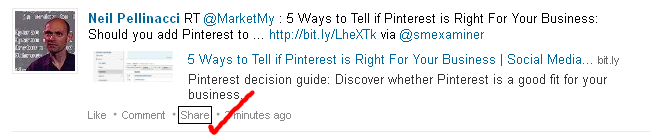
So now we can effectively and quickly retweet from Twitter into other social networks, including LinkedIn, and once in LinkedIn, our updates can be easily shared by others in our network:
However, because of the way that the Buffer extensions work, this opens up a solution to the problem of Tweets piped into LinkedIn status updates becoming un-shareable on LinkedIn.
This is a problem I wrote about recently over on Social Mii so I won't cover it again in detail here, except to repeat one of the screenshots which describes the problem (click on all the images in this post to enlarge them):
The issue here is a lack of a LinkedIn "share" link when Tweets are piped directly into LinkedIn from Twitter.
The ability to schedule retweets using Buffer allows you to also share the update with other social media networks, including LinkedIn. Here's an example of the process in action.
We start with the Tweet we wish to retweet. As we have the Buffer extension installed, the twitter.com page now includes the "Buffer" link, along with the Buffer icon:
Click on the Buffer link, and the normal Buffer extension dialogue appears, with the original Tweet shown with the "RT @user:" retweet prefix. In this example, the addition of this prefix pushes the text to over 140 characters, which is too much for Twitter, so it does need to be edited down slightly.
Note that the Buffer accounts list include my Twitter and LinkedIn accounts, which means that this update will go to both social networks. Click "Add to Buffer", and the post will be added.
We now check the Buffer schedule and find both the Twitter and LinkedIn updates are in place:
One other thing to add is that the LinkedIn share allows for additional information to be displayed from any link included in the Tweet, and although Buffer supports this, it isn't included here. However, all is not lost, as we can now edit the LinkedIn item by using the "edit this post" button in Buffer. We only need to make a minor change to the text (such as adding a space) and Buffer will go off and fetch the additional information, and update the post:
So now we can effectively and quickly retweet from Twitter into other social networks, including LinkedIn, and once in LinkedIn, our updates can be easily shared by others in our network:
Subscribe to:
Posts (Atom)