Showing posts with label LinkedIn Updates. Show all posts

Wednesday, 26 June 2013

Six Silly Things to (not) do on LinkedIn

There's plenty of ways your Social Media presence can work against you, and your LinkedIn profile is no exception. Remember that LinkedIn is the social network for professionals, and you're probably there either to sell your services and abilities, or those of your company. Here's some things to avoid.

1. Send Default Connection Request Messages

Chances are, whenever you send a connect request on LinkedIn, it's either to someone you've known for a long time, or someone you met a few days ago. In which case, not having the time to replace the default message with one which says "hi", or which has a reminder of where you met, can make it look like you can't be bothered.

2. Send Generic "Hello and Thanks for Connecting" Messages

These can look needy and clingy, and are also particularly silly if you've accepted the request rather than sending it out. Got something specific to say - then say it, but if you haven't, save your efforts for another day when you can have more impact.

3. Use the Wrong Photo

As I've mentioned in previous articles, using the wrong photo, or no photo at all, can count against you. People are more likely to look at your profile if you have a photo, and if it's a decent one, they'll take you seriously, which is what you want of course. So, skip the drunk ones, the wedding ones, the sideways ones and the artistically cropped ones.

4. Confuse your Social Networks

Your exact whereabouts, mental state and the food you're eating are all things for Facebook and Twitter, but they're not things for LinkedIn. A continuous stream of irrelevant toot will have your connections clicking the "hide" link for your updates faster than you can know.

5. Break LinkedIn Terms and Conditions

Remember that although LinkedIn is a free service, by signing up, you agree to abide by their terms and conditions. And if these say that you can't put your phone number in the title field on your profile (and they do), then don't do that.

6. Don't keep your Headline and Current Positions in Step

At some point in the past, you may have put your current job into your headline, or LinkedIn may  have put it there for you as a default, and you accepted it. If you subsequently change jobs, make sure you change your headline as well, people may only look once, and you want them to get the facts as they currently stand without any confusion.

Read more for further ideas for your LinkedIn profile.

photo credit: cellar_door_films via photopin (cc).

Wednesday, 22 May 2013

Did you Mean to Mention me on LinkedIn?

LinkedIn recently added the new Mentions feature with the usual blaze of publicity, but like a lot of recent changes it's taken a while to propagate to all users, and in this case, to all browsers.

This is a great way to increase social interaction with those within and outside your immediate network. However, there have been some interesting side effects, and it's worth spending a moment looking at how Mentions work in LinkedIn.

You can try it for yourself by starting to type a status update. If at any point  you enter an "@" symbol, Mentions will kick in:


It also triggers if you enter the name of a person or company, but only if you've started it with a capital letter:


You can autocomplete the typing of a name at any time by pressing the Enter key. A Mention will be shown with the text against a grey background.

So what's the catch? Well, I've seen a few LinkedIn status updates inadvertently Mentioning companies because their names are based on words used in everyday language which could start a sentence, and hence be capitalised when typed. I took a screenshot of this great example which I saw soon after Mentions was rolled out:


This was a comment on a piece of good news announced by a company, and my connection simply wanted to say "Congratulations" - but inadvertently interacted with a French company of the same name.

As always, you should check anything you say on LinkedIn, and other social networks, as carefully as you can, whether it's a status update or your profile text.

Friday, 22 February 2013

3 Things to Never Spell Wrong on LinkedIn

Photo credit: Cubosh on Flickr
I've seen several comments over the past few weeks about spelling, grammar and general accuracy in LinkedIn profiles, CVs, and other important professional documents. Some of these comments have contained errors themselves. The irony of it all.

Spell check can help you with this of course, but there's a limit to the number of scrapes it can get you out of. There's no substitute for checking. Having said that, certain parts of your profile will always get more attention than others, so you should give them (even) more attention yourself.

Here are 3 Things to Never get Wrong


Your Job Title

You might think I'm making this up, but a quick trawl through LinkedIn for those working in "apllication" development will show otherwise. Even as I type, the bad spelling has been flagged up, so there's really no excuse here. Another favourite is confusion of "principal" with "principle". Spell check won't help you here, but if this word is in your job title, you're probably quite high up the food chain, and it'll be on your business card, so check it there.

Your Employer

Contain your incredulity, and search LinkedIn for "AXA Insuranec". You're unlikely to get head hunted by a large corporation if you can't spell the name of the one you're currently working for correctly.

Your Mega Client

Last year I saw a LinkedIn status update from someone in my network proudly announcing a major report he had been commissioned to write for his client, "Erst & Young". One has to hope the client was correctly referred to as Ernst & Young in the final version of the report.

Why this Matters

In an increasingly complex world, accuracy is everything. Mistakes such as these will demonstrate that you: either don't know about, or don't use, tools which are there to assist you; don't check your work; don't care about your current job, employer, or client. As employers and potential clients make increased use of LinkedIn, presentation skills (or a lack of them) will be one of the factors used when deciding who should be on the short list.

Monday, 22 October 2012

LinkedIn Endorsements: The Good, the Bad and the Ugly

I've received a few emails recently about LinkedIn Endorsements, a new feature on the professional social networking site. Like many such features, they were added with a specific reason in mind, but there have been some side effects which are, I suspect, unintentional.
So first of all, what are they? Well, you can read the LinkedIn announcement describing them here. Basically the feature builds on the existing "Skills" facility, allowing connections viewing your profile to click on a skill to indicate that they can confirm that you have that skill. This is very similar to LinkedIn Recommendations, but there are some differences, which are crucial.

The Good


The problem with Recommendations is that they're time consuming to write (properly) and also need a level of (necessary) interaction between the two parties before being published against a profile, nobody wants a Recommendation to say negative things, so each one must be approved by the recipient. Endorsements, however, are quick and precise - you can select the skills you've seen your contact demonstrate and endorse each with a single click.

Also, Endorsements are connected to Skills, and everyone should have Skills listed on their LinkedIn profile, because having a formalised skills list makes it easier to be found on LinkedIn searches. I've seen numerous LinkedIn profiles which have not been updated to include Skills, and the Endorsements feature will encourage those people to add Skills, so that they can then be endorsed.

The Bad


As mentioned above, Recommendations take a little while to sort out, but they can be very specific, and allow your connections to go into a bit more detail about the particular business or technical projects you've worked on, and how significant your contribution was. All of that is lost in a single-click Endorsement.

The other major issue with Endorsements is the amount of noise they can generate. You will receive emails from LinkedIn whenever someone endorses your skills, but you can switch these off (go to Settings -> Email Preferences -> Set the frequency of emails -> Endorsements). Also, whenever someone in your network receives or issues an Endorsement, that activity will show up on as an update on your LinkedIn home page - although LinkedIn will roll these up into single updates for multiple connections from time to time.

The Ugly


The speed advantage offered by Endorsements can work against you, however. If one of your connections gets click happy, you may find them endorsing you for skills that they have no knowledge of. Your network will consist of people you have, and have not, worked with before, so it's worth keeping track of those Endorsements - if any are not appropriate, you can hide them (click the "see all endorsers" icon, and use the "Hide endorsement" buttons as required).

And if you are a "click happy endorser", remember that your Endorsements will show up as a LinkedIn activity, so if people in your network see that you're endorsing pretty much everyone for pretty much everything, your Endorsements will carry less weight in the future.


Wednesday, 8 August 2012

LinkedIn Usage Trends

Over the past month, my LinkedIn network has grown by about 5% so I thought I'd run a quick query over the data I've accumulated to see if there's much in the way of change in habits since last time.


The short answer is no, but looking a bit deeper, a slightly higher percentage of the network creating shares does indicate some increased activity, so it'll be interesting to see if this trend continues over the coming months.

In the meantime you can find out more about the chart above here.

Wednesday, 4 July 2012

Are you making the most of LinkedIn?

Earlier this year I started extracting network data from LinkedIn via the LinkedIn API. There are some earlier posts about how this can be done, and a couple more looking at the data over the first couple of months for which I was able to compile a proper data set.

Since then I've been compiling more data and now seems a good time to look at how my network has grown, and the extent to which my connections make use of LinkedIn.

My network has grown by around 10% since I first started accumulating data, and one of the consequences of accumulating that data (as there is a limit to what you can retrieve in any one request) is the inevitable lack of historical data for new connections.

However, this effect can be lessened by only reporting activities within the last calendar month, which is the report I'm currently producing. That data can then be accumulated itself, to give a month by month overview:


What's interesting is that over the 4 months shown, my network has grown, but the percentage of it making use of LinkedIn features has fallen - which would imply that the new connections are not, on average, increasing the usage figures.

This suggests that LinkedIn is being used fully only by a small core group of my connections, while the remainder use it for making new connections and building their own networks, or in a lot of cases, not at all - consider the final set of bars, over a third are consistently not using LinkedIn at all in a way that can be measured.

I'll be continuing to accumulate this data over the coming months. In the meantime you can find out more about the chart above here.

Monday, 4 June 2012

Use Buffer to Retweet into LinkedIn

In May, the team at Buffer announced some updates to their browser extension components which allow you to schedule Tweets from within twitter.com, and also to schedule retweets.

However, because of the way that the Buffer extensions work, this opens up a solution to the problem of Tweets piped into LinkedIn status updates becoming un-shareable on LinkedIn.

This is a problem I wrote about recently over on Social Mii so I won't cover it again in detail here, except to repeat one of the screenshots which describes the problem (click on all the images in this post to enlarge them):

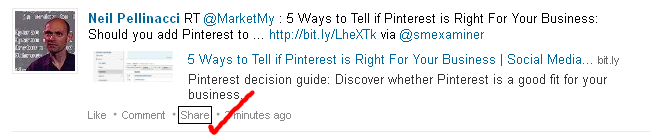
The issue here is a lack of a LinkedIn "share" link when Tweets are piped directly into LinkedIn from Twitter.

The ability to schedule retweets using Buffer allows you to also share the update with other social media networks, including LinkedIn. Here's an example of the process in action.

We start with the Tweet we wish to retweet. As we have the Buffer extension installed, the twitter.com page now includes the "Buffer" link, along with the Buffer icon:


Click on the Buffer link, and the normal Buffer extension dialogue appears, with the original Tweet shown with the "RT @user:" retweet prefix. In this example, the addition of this prefix pushes the text to over 140 characters, which is too much for Twitter, so it does need to be edited down slightly.


Note that the Buffer accounts list include my Twitter and LinkedIn accounts, which means that this update will go to both social networks. Click "Add to Buffer", and the post will be added.

We now check the Buffer schedule and find both the Twitter and LinkedIn updates are in place:


One other thing to add is that the LinkedIn share allows for additional information to be displayed from any link included in the Tweet, and although Buffer supports this, it isn't included here. However, all is not lost, as we can now edit the LinkedIn item by using the "edit this post" button in Buffer. We only need to make a minor change to the text (such as adding a space) and Buffer will go off and fetch the additional information, and update the post:


So now we can effectively and quickly retweet from Twitter into other social networks, including LinkedIn, and once in LinkedIn, our updates can be easily shared by others in our network:


Monday, 7 May 2012

LinkedIn Usage Patterns Emerge

There are virtually no changes to the usage pattern for connections in my LinkedIn network during April 2012, on a network which grew only very slightly over the month.

I'm expecting this to settle into a regular pattern, showing that the majority still use LinkedIn for growing their networks rather than interacting with them, although I would also expect this to change over longer timescales as more people learn how to make better use of LinkedIn.

Click on the link below the summary chart to see the full page, with charts created in HTML5 using RGraph.
Click to view full size

Monday, 2 April 2012

Monthly LinkedIn Data Analysis

Previously I have described how to extract data from your network using the LinkedIn API, and how I am now storing that data in order to be able to analyse it more fully.

Now that I have another month's worth of data, I've expanded the summary page to include charts for last month as well as this, and for both I've added a new chart which represents any activity on LinkedIn, be it new connections or a profile update.

During March, the shares situation is almost unchanged from February, but more than half made new connections, while the total activity increased very slightly. My network grew by approximately 10% during the month, so there will be some inaccuracy due to the fact that full data will not be available for newer connections.

Click on the link below the summary chart to see the full page:

Click to view full size

Monday, 5 March 2012

More LinkedIn Data Analysis

Looking deeper into the data available from the LinkedIn API reveals more about how it is used by the connections in my network.

Previously I described how I had used the LinkedIn API to extract data from my network, and the results of some basic analysis. Since then, I've made enhancements in order to:
  • Extract network events of other types, not just Shares
  • Store the event data in a MySQL database
  • Query the database to analyse usage
  • Present summary results using RGraph
This month I am concentrating on what is probably the most commonly used aspect of LinkedIn, namely expanding a network of connections. For January, I had already established that only around 10% of my network were sharing updates or article links, so for February I was interested to see whether it would be the same sort of figure for establishing new connections.

I suspected that it would be higher, and I was correct: nearly half in fact as the charts show. Note that clicking on the chart below will take you to a web page created solely for this purpose:


Wednesday, 1 February 2012

Extract Data from your LinkedIn Network

Some data extraction experiments with LinkedIn reveal the vast majority of my network is not very active.

As part of this investigation, I wrote some code to retrieve and process network updates from the LinkedIn database, which can be retrieved in totality or by type. I concentrated on "shares" as these are a good indicator of someone's activity - the other options I'll investigate later.

I chose to write the results to CSV files - but an obvious improvement is to write them to a database - and then imported into OpenOffice.org to produce the following summary graphic:

Only 9% of my network shared an update in January 2012, something which we might regard as "active", as opposed to adding new connections, which we might regard as "passive". A breakdown of those 9% shows that as ever, there are a small number of "leaders" who are regularly active, and quite a large "tail" who update very infrequently.

Which of these approaches stands more chance of reaching out to your existing and potential customers within your network?

Technical Notes

The LinkedIn API restricts the volume of information returned and the number of calls which can be made for performance reasons. The next step is to read more data, but more frequently, and accumulate it for further analysis.

I used LinkedIn-J, a Java library for accessing the LinkedIn API, to extract data from my LinkedIn network. I won't cover the specifics of using the API, as these are covered much better elsewhere but the basic steps are as follows:

  • Register your application with LinkedIn, and get your API keys
  • Log in to LinkedIn and obtain authentication tokens for your application to allow it to access your data
  • Write some Java code to call the API, read and process the results

Privacy Options

Note you will be unable to retrieve full details for any of your connections who have elected not to share  their data with third party applications.

Friday, 9 December 2011

Get More from LinkedIn Updates - Part 2

In part 1 I looked at some of the ways you can improve your use of LinkedIn updates, particularly feeding in updates from Twitter. You can also post updates directly in LinkedIn, using the "Share an update" dialogue at the top of the screen.

This useful dialogue allows you to attach a link to an external article, such as a blog post, either by clicking on "Attach a link" and pasting the link into the box which appears, or directly - paste the link into the share dialogue, and watch everything update. You can also provide additional text in the share dialogue.

If you are feeding updates from Twitter into LinkedIn, there is a pitfall to avoid however, which is posting the same update twice, once via Twitter and then separately via the direct LinkedIn update. Your connections on LinkedIn will see two updates, identical, often next to each other, like this (admittedly rather contrived) example:

This can becoming annoying very quickly, and could lead to your updates being hidden by others, something which you obviously want to avoid.

Monday, 31 October 2011

Get More from LinkedIn Updates

As mentioned in a previous post, I spend more time on LinkedIn these days. Here are some more hints I've picked up from other people recently which are worth sharing.

Connect your Twitter account to your LinkedIn profile. I prefer to post updates from Twitter, but it will work both ways if you want. However, watch what you Tweet once you've done this. The best approach is to use the #in and #li tags to control propagation to LinkedIn. As ever a Google will lead you to useful resources, here's a random one from a search I did.

Hide updates from connections who update too frequently or whose updates are irrelevant. You can do this by clicking on the "Hide" button, but be aware this only appears when you hover your mouse over an update:
If you decide to review your hidden updates, if you have any, you can do this by selecting "More - Hidden >>":

 and then choosing "Hidden" - update the list which appears:

Watch the frequency and relevance of your updates, whether via Twitter or directly on LinkedIn. See above, don't let your updates be the ones that get hidden by others in your network, given the number of steps needed to reverse the decision, it's likely that once a connection has decided your updates should be hidden, they'll remain hidden.